
How to create custom fields on Proton Pass
- Lecture
- 2 minutes
You can add custom Text, 2FA secret (TOTP), Hidden, or Date fields to Login items on Proton Pass.
Learn how to use two-factor authentication (2FA) in Proton Pass
Follow these step-by-step instructions to add custom fields using either the Proton Pass browser extension or mobile apps.
- How to create a custom field using the Proton Pass browser extension
- How to create a custom login field on Proton Pass for Android
- How to create a custom login field on Proton Pass for iPhone and iPad
How to create a custom field using the Proton Pass browser extension
1. Open the Proton Pass browser extension and either create a new Login item or edit an existing one.
Learn how to use the Proton Pass web app
2. Scroll down to the bottom, click + Add more, and select the type of custom field you’d like to add (Text, 2FA secret (TOTP), Hidden, or Date).

3. A new field of the selected type will be created. Note that you’ll need to give it a Field name.

How to create a custom login field on Proton Pass for Android
1. Open the Proton Pass app on your Android device and either create a new Login item or edit an existing one.
2. Scroll down to the bottom, and tap + Add field.
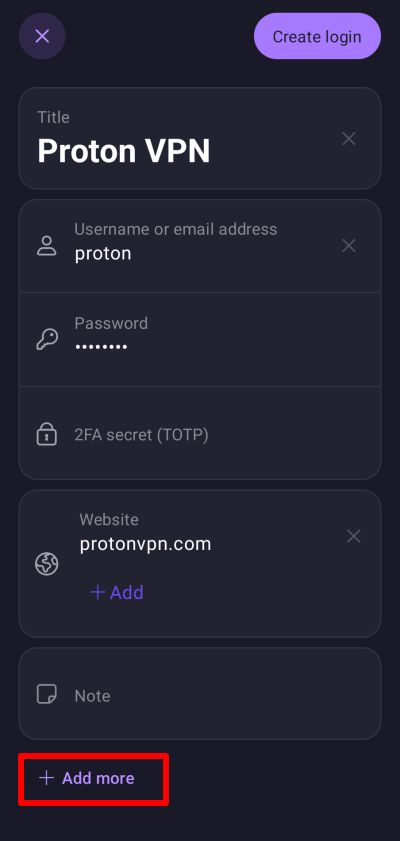
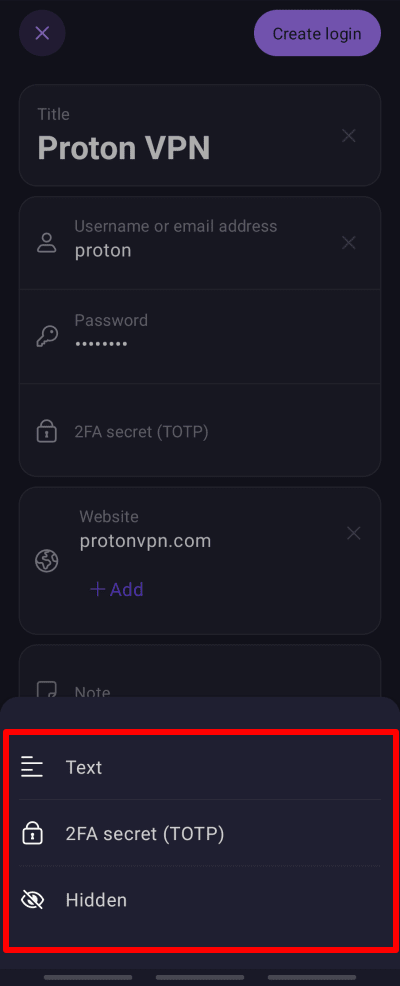
3. Select the type of custom field you’d like to add (Text, 2FA secret (TOTP), Hidden or Date).
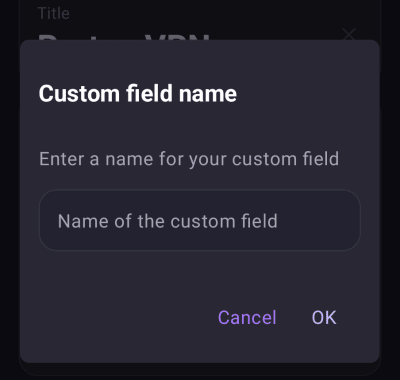
3. Enter a Custom field name, and click OK.
How to create a custom login field on Proton Pass for iPhone and iPad
1. Open the Proton Pass app on your iPhone or iPad, and either create a new Login item or edit an existing one.
2. Scroll down to the bottom, and click + Add more.
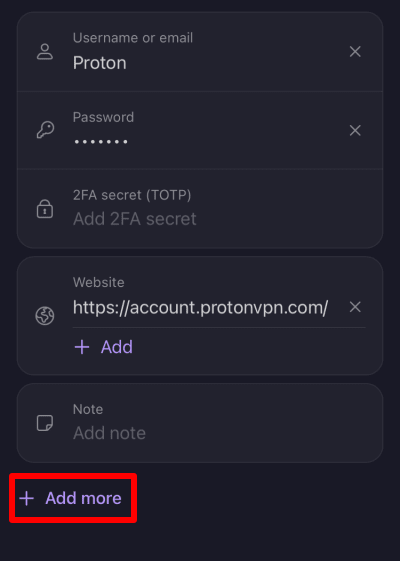
3. Select the type of custom field you’d like to add (Text, 2FA secret (TOTP), Hidden or Date).
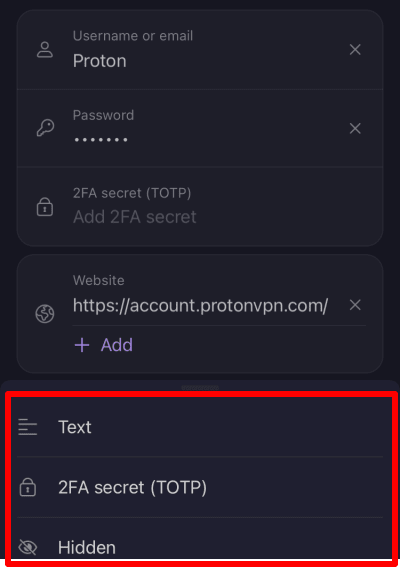
3. Enter a Custom field title, and click OK.
